How to Import Multiple EML Files into Outlook with Attachments
Email messages are saved in the EML format by many email clients. But in case people switch to using Microsoft Outlook, then they have to migrate a number of EML files, retaining all their emailsattachments in the original state
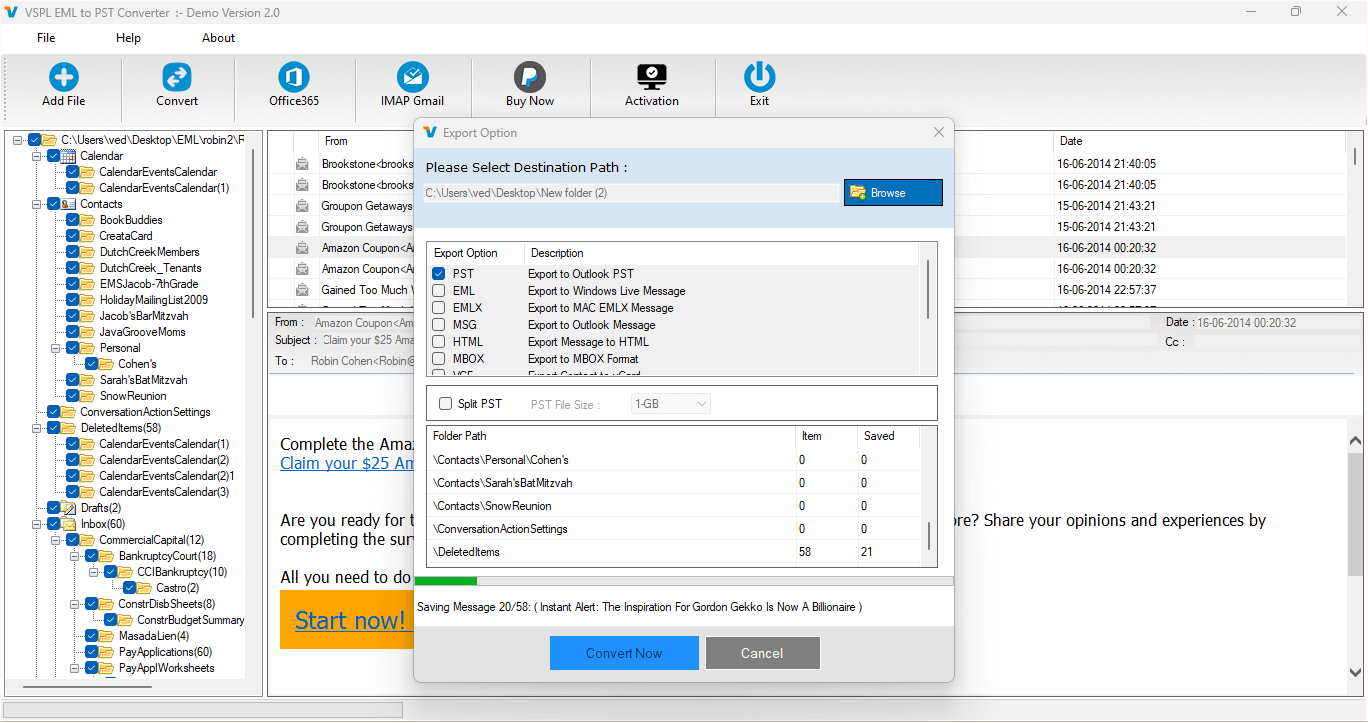
Email messages are saved in the EML format by many email clients. But in case people switch to using Microsoft Outlook, then they have to migrate a number of EML files, retaining all their emails and attachments in the original state. Manually migrating a great number of EML files is not easy due to the lack of a corresponding feature in Outlook. Therefore, people usually try to find a good solution for EML to PST migration without losing all email message properties and attachments.
This task becomes much more important in case EML files include important business discussions, documents, photos, invoices, or some other attachments. The right migration approach will help to keep email messages in the original form.
Why Import Multiple EML Files into Outlook?
EML files can be generated by various email clients and are also widely used as email message file formats. Since Outlook is mainly concerned with PST and OST files, it is necessary to convert EML files so that the user is able to access these emails more efficiently via Outlook. Manual conversion may be feasible when the number of messages is relatively small.
However, converting numerous files manually will be very time-consuming and may not even be feasible at all. Some reasons for which it would be necessary to convert EML to PST include migration to a new email client, such as Outlook, consolidating the existing email archive, transferring emails between computers, and building a consolidated email inbox using Outlook.
Challenges of Manual EML Import
Unfortunately, there is no straightforward option within Outlook to convert an entire set of EML files to PST format. One can attempt to open individual EML files and transfer them to Outlook folders, which will be unproductive when working with big sets of data.
Moreover, manual conversion might make it hard to preserve the initial hierarchy of emails. It will be necessary to check whether the attachments are all right; this procedure will become even more complicated when EML files are stored in different folders. For companies or specialists working with vast email collections, it is recommended to use EML to outlook converter tool.
Use VSPL EML to PST Converter for the Migration
The VSPL EML to PST Converter has been created to assist users in converting their EML mailbox data into PST format, which is compatible with Microsoft Outlook. Unlike converting emails manually one by one, users will be able to import multiple EML files or folders into a single PST file.
The process of conversion is made to keep all email data, such as the body of the message, the sender, recipient, subject, date, and any attachments included. Such functionality is very convenient when dealing with EML files that include some business files or any other attachments needed to be accessed later on after migrating their emails to Outlook.
One of the advantages of using the VSPL EML to PST Converter is that it helps with bulk migration, and users will be able to convert multiple files at once.
Steps to Import Multiple EML Files into Outlook
The general procedure for using the EML to outlook converter tool is very easy:
Step 1: Install the Converter
Install and set up the conversion tool in a Windows system. Start the program once it has been installed.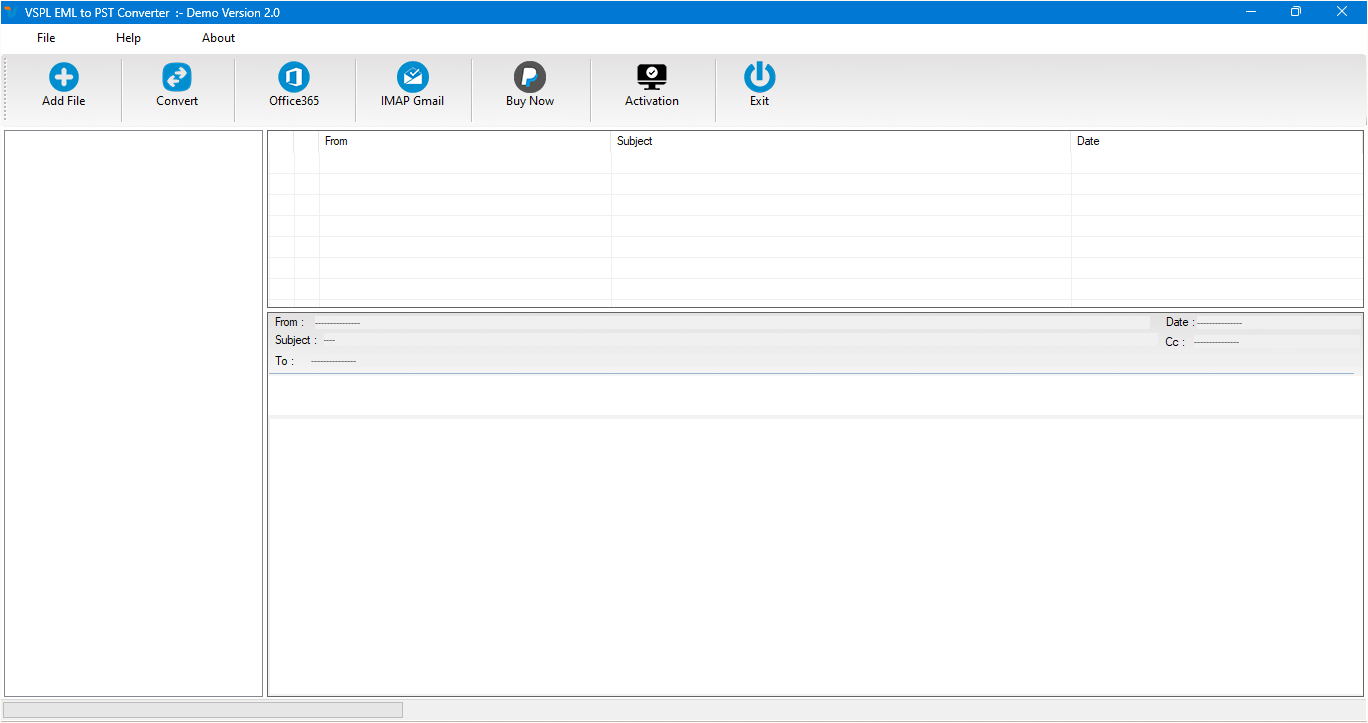
Step 2: Add EML Files or Folders
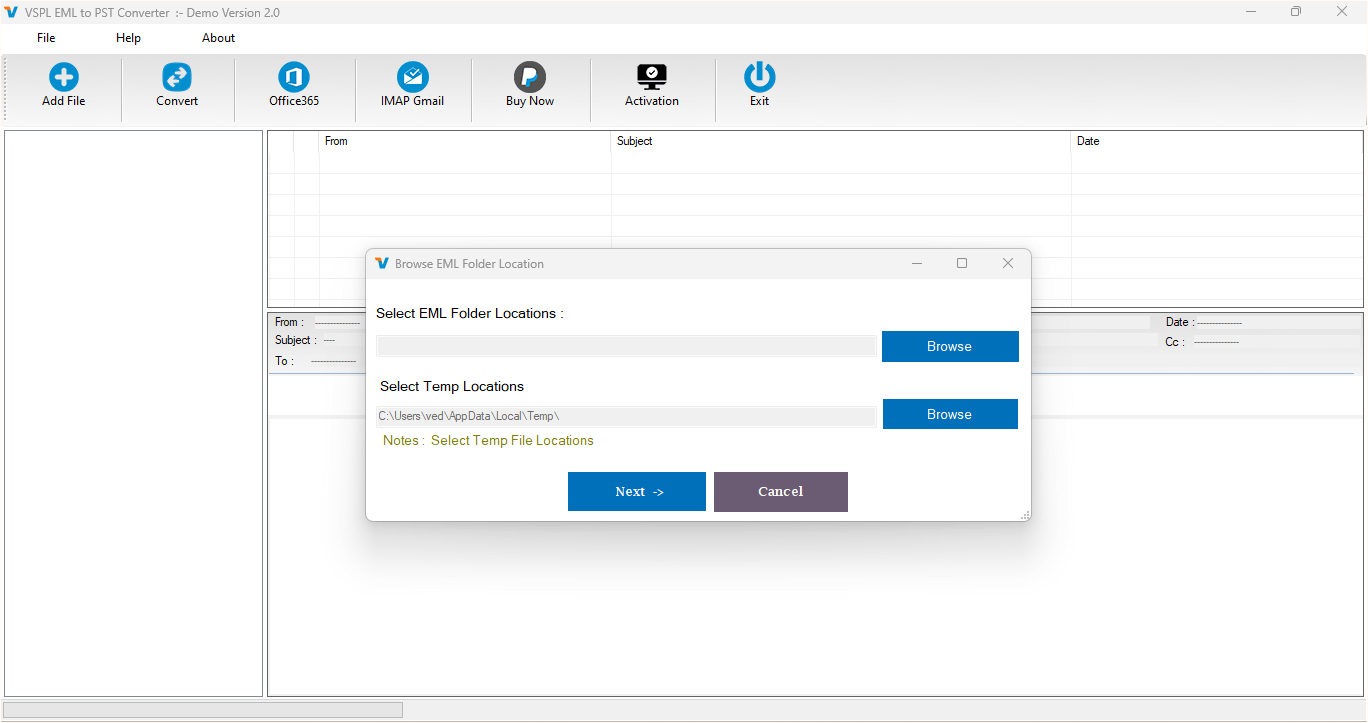
Navigate to the directory where the EML files are located. Select either individual files or directories comprising multiple EML emails. This way, users can process many emails at once.
Step 3: Preview the Emails
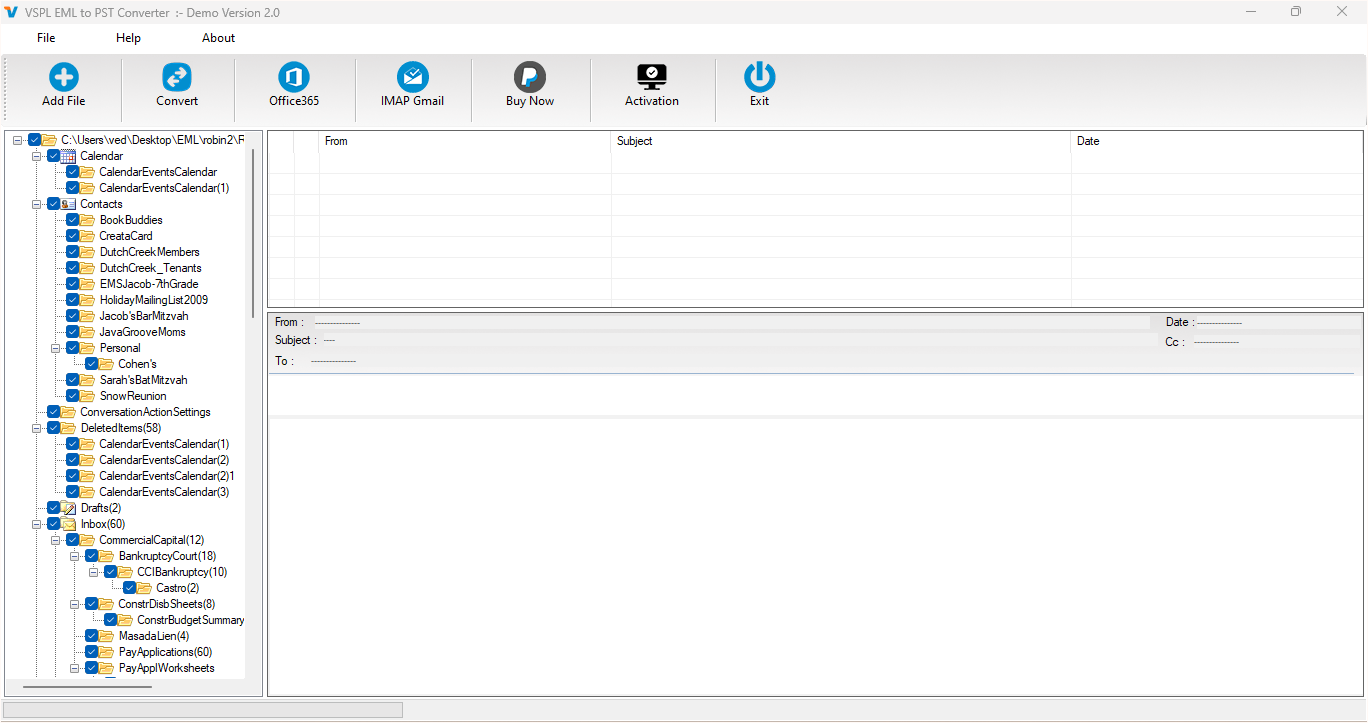
Make use of the feature to preview the available EML messages before starting the conversion process. Previewing the mailbox makes sure that the necessary emails and attachments are present.
Step 4: Select PST as the Output Format
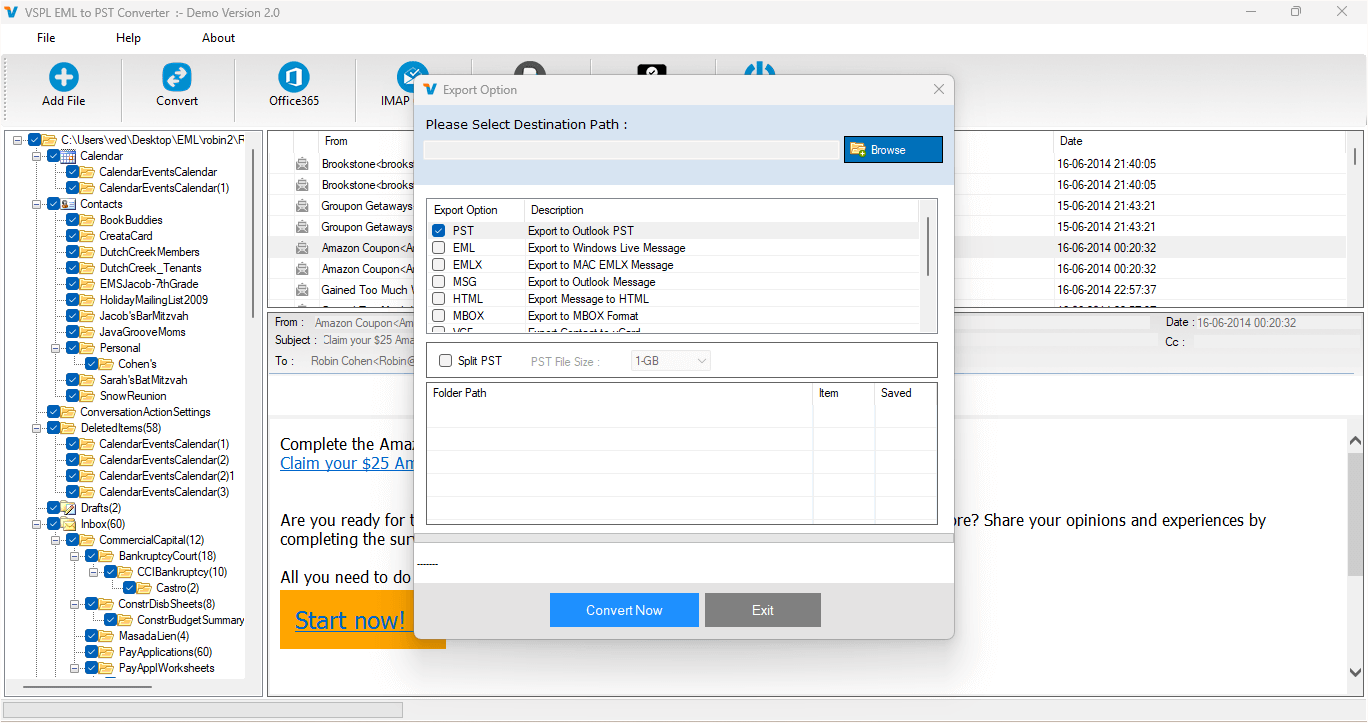
Choose PST as the export format. The created PST file will then open up or will import into Microsoft Outlook.
Step 5: Start the Conversion
Select the destination folder and start the conversion process. The software will do the conversion of the selected EML files and will generate PST files that will be compatible with Microsoft Outlook.
Step 6: Import PST into Outlook
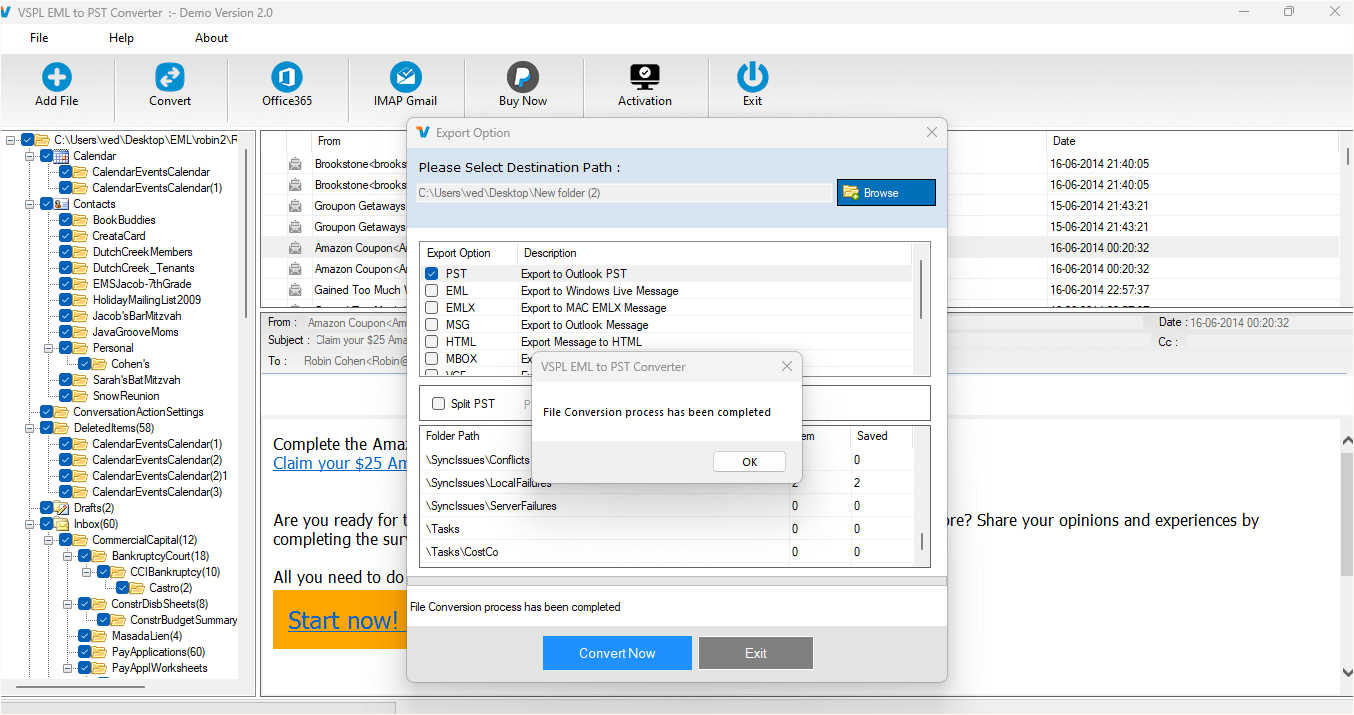
The process of conversion is complete. Open Microsoft Outlook and make use of the import/export feature to open/import the created PST file.
Can a free EML to PST converter Handle Large Data?
When users need to convert just a few e-mails, they look for a free EML to PST converter to convert EML to PST. Free software may be useful in some cases, but users need to think about aspects like batch conversion capabilities, attachment protection, folder tree structure, preview ability, and file limitations.
In the case of big migrations, users might need to choose conversion software, since it is more suitable for working with multiple EML files. Users should remember to create a copy of their e-mail before performing a migration procedure.
Preserve Attachments During EML to PST Migration
Attachments can be considered one of the most crucial aspects of email conversion. Email conversion cannot be considered complete when the attachments are not migrated even if the actual message has been successfully moved to another account. When it comes to conversion, the attachments must also be saved together with the messages.
EML to PST conversion enables users to migrate their emails into a form that can be processed by Outlook easily. The users will then be able to open the migrated emails and their attachments.
Conclusion
The process of importing a large number of EML files into Outlook becomes tough for the users as they have to migrate a lot of messages and attachments. Manually importing some emails might be easy for the user but manual importing is not feasible for bulk migration of emails. It would be more feasible for users to use the VSPL EML to PST Converter and convert multiple EML files into PST file format while preserving essential email details and attachments.
The process of importing multiple emails with the help of an EML to Outlook converter tool becomes easier for users as they can preview the emails and create the PST file for use with Outlook. How to Import Multiple EML Files into Outlook with Attachments explains why a dedicated conversion approach is useful for handling multiple EML files and their attachments.
How to Import Multiple EML Files into Outlook with Attachments Comments