Step 1: Select Office 365 as the Mailbox Source
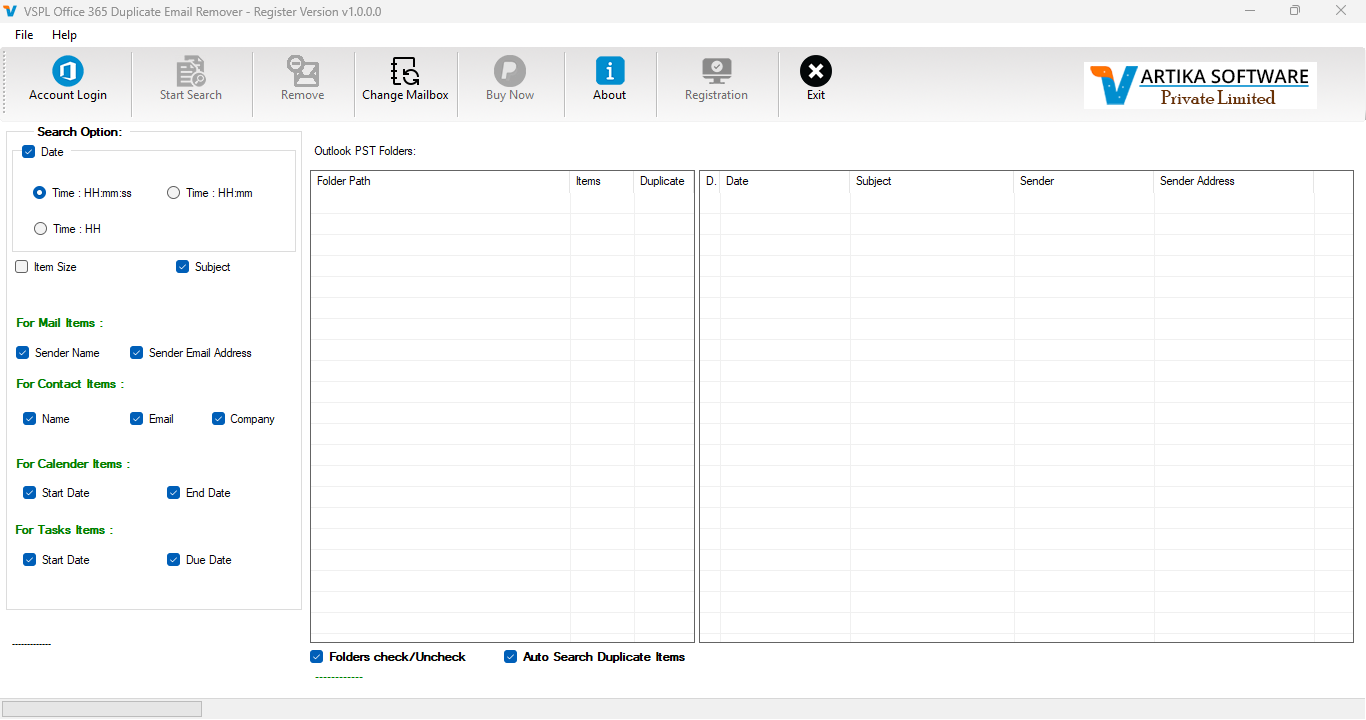
Open the software and select Office 365 or Microsoft 365 as the email source.
This tells the application that the duplicate emails are located in a cloud-based Microsoft 365 mailbox rather than in a local Outlook data file.
Depending on the edition, the tool may support:
- Individual Microsoft 365 mailboxes
- Multiple user mailboxes
- Administrator-managed mailboxes
- Mailboxes selected from a Microsoft 365 tenant
Choose the option that corresponds to your account type and license.
Step 2 : Sign In to Your Microsoft 365 Account
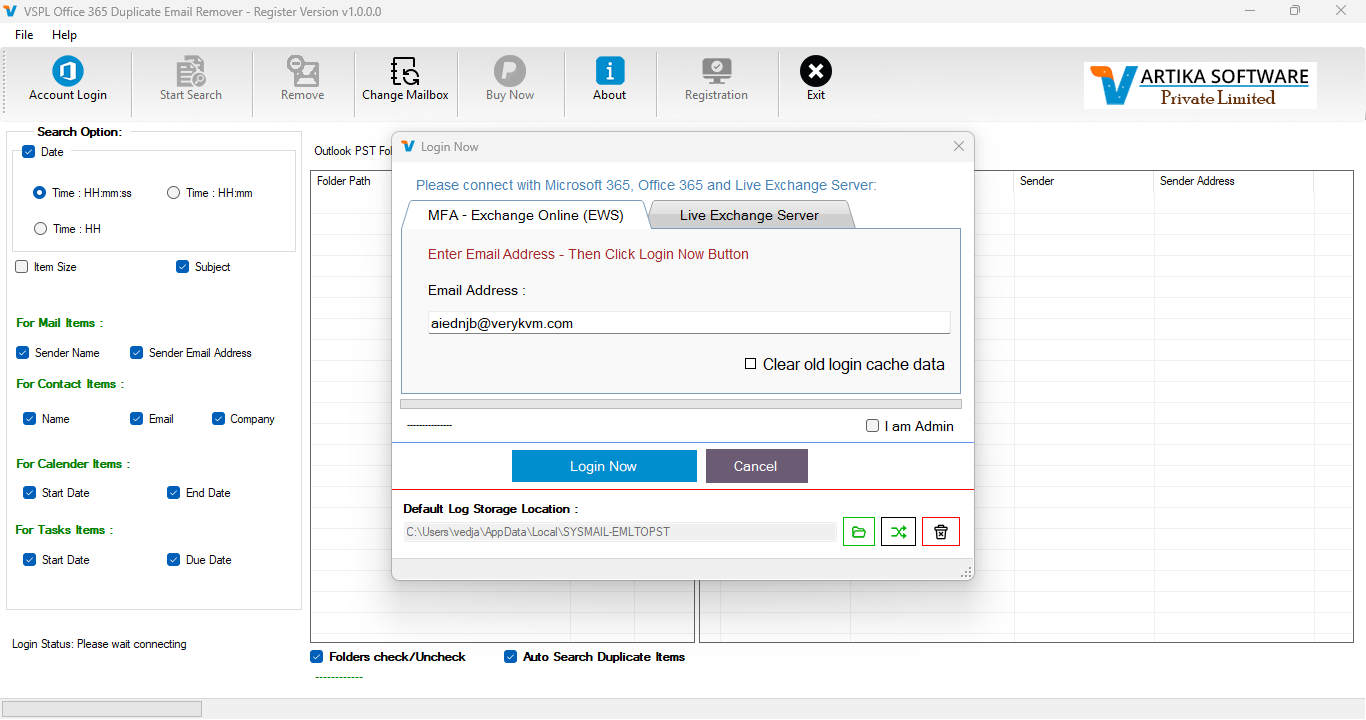
Sign in using the Microsoft authentication window provided by the application.
The typical process is:
- Enter your Microsoft 365 email address.
- Complete the Microsoft sign-in process.
- Verify your identity if multifactor authentication is enabled.
- Review the permissions requested by the application.
- Approve access if the permissions are appropriate.
- Allow the software to load the available mailboxes.
An administrator may need to grant consent when the application must access multiple users’ mailboxes in a Microsoft 365 tenant.
Step 3 : Choose the Mailbox Folders
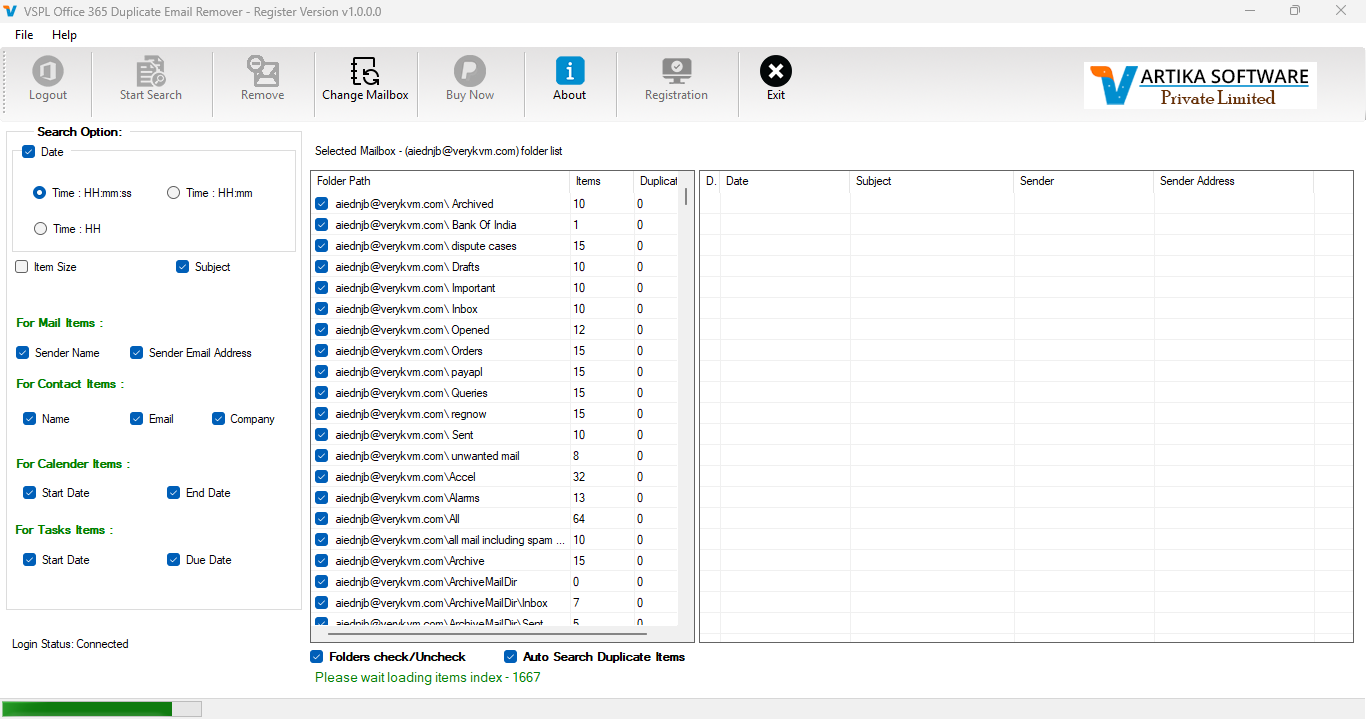
Select the folders that may contain duplicate messages.
Common folder choices include:
- Inbox
- Sent Items
- Drafts
- Deleted Items
- Archive
- Junk Email
- User-created folders
- Mailbox subfolders
If the application provides an Include Subfolders option, enable it when duplicate emails may be stored inside nested folders.
To reduce scan time, exclude folders that do not need to be checked.
Step 4 : Configure Duplicate Email Matching Criteria
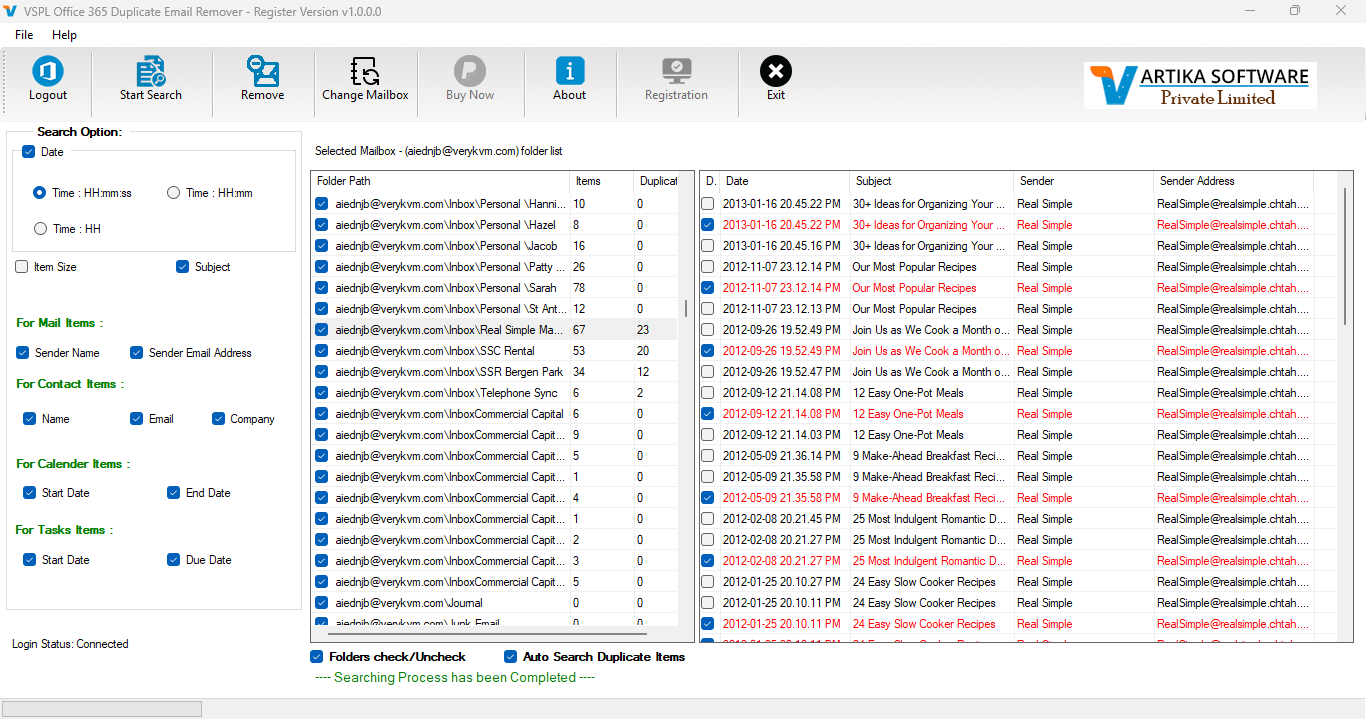
Choose the email properties that the software should compare when identifying duplicates.
Available criteria may vary by software version, but duplicate email tools commonly compare fields such as:
- Subject
- Sender email address
- Sent or received date
- Internet Message ID
- Message size
The application treats messages as duplicates when the selected properties match.
Recommended matching configuration
For a safer first scan, use a restrictive combination such as:
- Sender
- Subject
- Sent date and time
If attachments are important, include attachment-related criteria where available.
Using only the subject line may produce false matches. For example, two valid emails can have the same subject, such as “Monthly Report,” but contain different content or attachments.
Step 5 : Configure the Duplicate-Removal Action
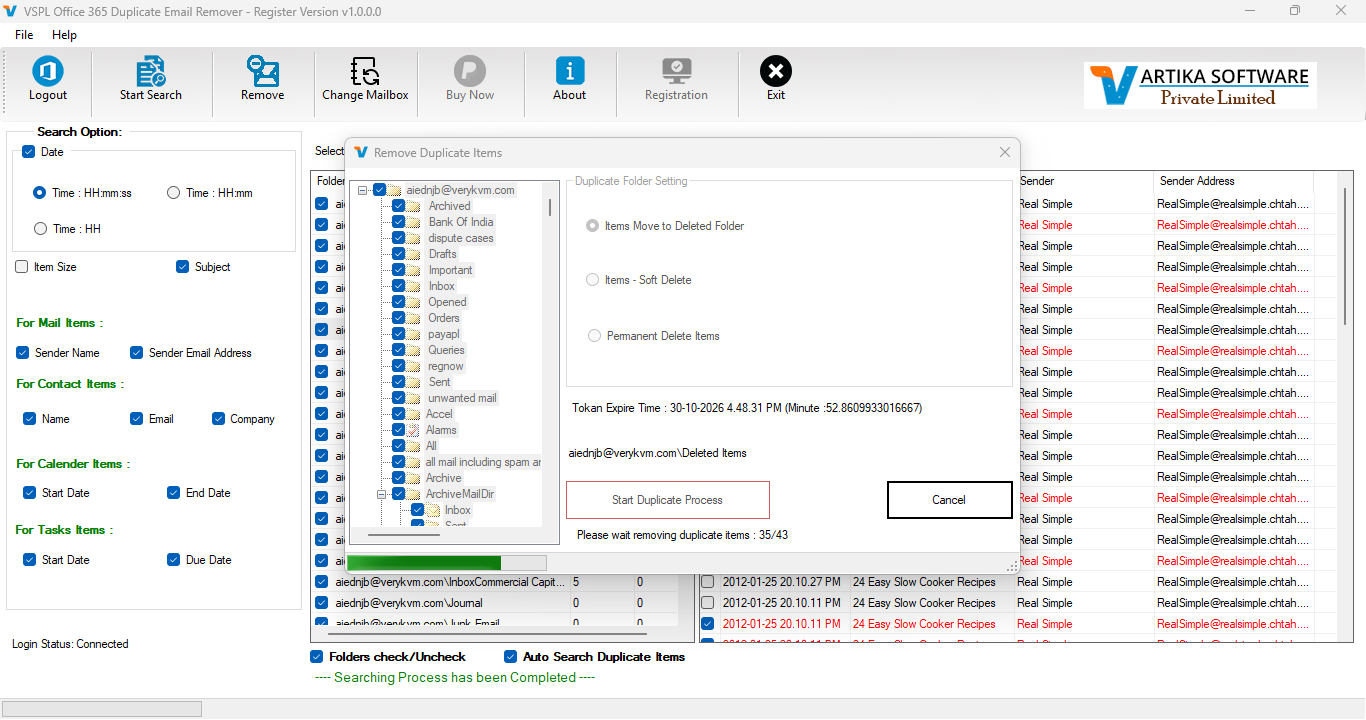
Select what the software should do when it finds duplicate messages.
Depending on the available options, the action may include:
- Move to Deleted Folder
- Soft Delete
- Permanently delete duplicates
- Retain one original copy and remove the remaining copies
For the first production run, moving duplicate messages to Deleted Items or a dedicated review folder is generally safer than permanent deletion.
Example
Suppose the scan finds five emails with the same sender, sender email address, subject, and sent date.
The software should:
- Retain one original email
- Identify the other four messages as duplicate copies
- Apply the selected removal action to those four copies
Check the software’s retention-selection options to understand which copy is kept.
Step 6 : Remove Duplicate Emails from Office 365
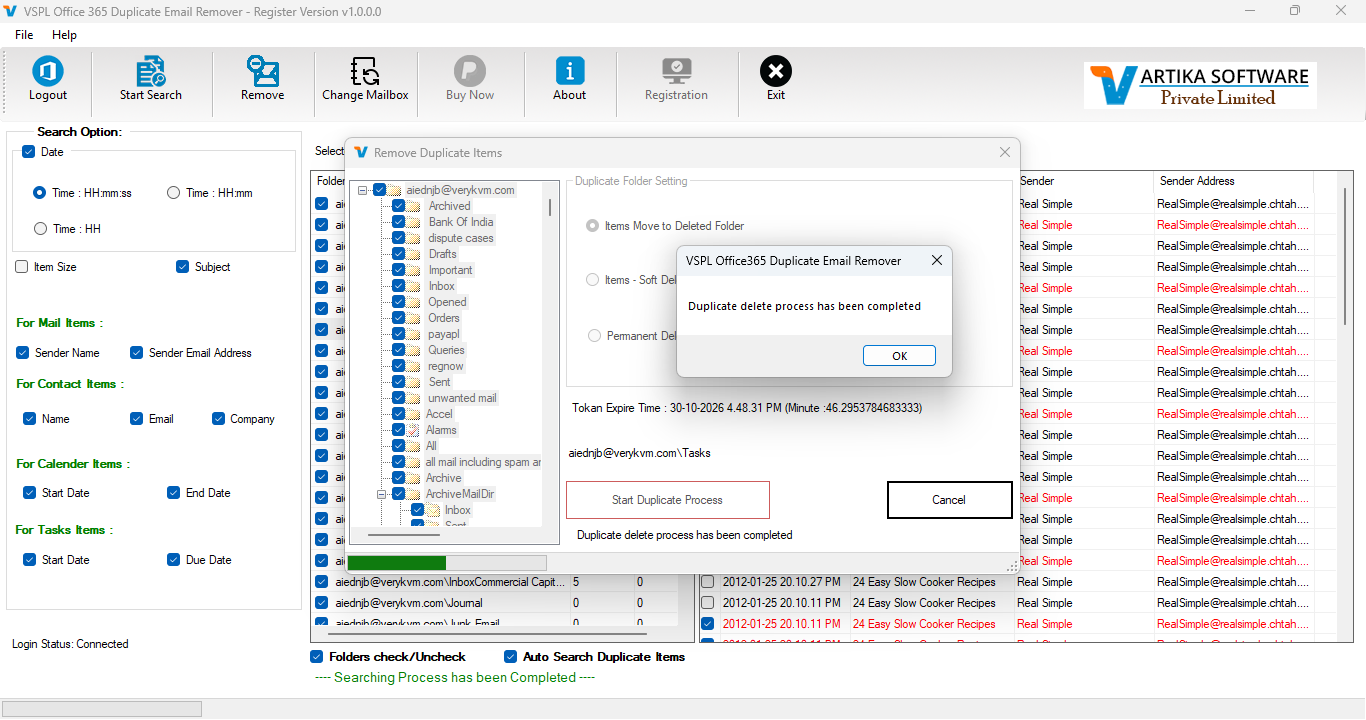
Once the scan results have been verified, start the removal process.
The software should retain one valid copy from each duplicate group and apply the selected action to the remaining copies.
Do not disconnect the Microsoft 365 account or close the application until the process is complete.
After removal, review the summary report for:
- Successfully processed emails
- Removed duplicate copies
- Retained original messages
Preserve the report when the cleanup is part of a business, migration, or compliance project.